Claude Quick Start Guide - The Basics
A guide to the functions most useful in day-to-day work
Addressing the Limitations of Claude
Training Data
Claude draws on its training data to respond to your prompt. The training data are only valid up to the published cut-off dates (May 2026 for Opus 5, January 2026 for Sonnet 5). To include recent information in Claude’s output, you can upload additional data or request that it perform web research.
Hallucinations
Hallucinations are responses from an LLM that sound plausible but are factually incorrect or entirely fabricated.
To address the possible existence of hallucinations in Claude’s responses, take the following actions:
1) Prompt Claude to cite its sources
2) Prompt Claude to double-check or find errors in its responses
3) Validate the truthfulness of its output manually
Remember: Critical information should be validated before usage. Do not rely on an authority you have not double-checked. Hallucination can involve fabricated research, fake statistics, and incorrect facts about people or events.
The Basics: Five Essential Features for Effective Use
Project: A workspace for one topic that holds that topic’s documents and conversations.
Context: The information that Claude accounts for when answering — the provided documents, your instructions, and the conversation.
Skill: Written instructions for a repeated task; Claude follows these instructions each time the task comes up.
Connector: A link between Claude and an external system that GP uses, such as SharePoint.
Plug-in: A bundle of Skills and connectors assembled for a defined kind of work, such as Legal work.
Projects
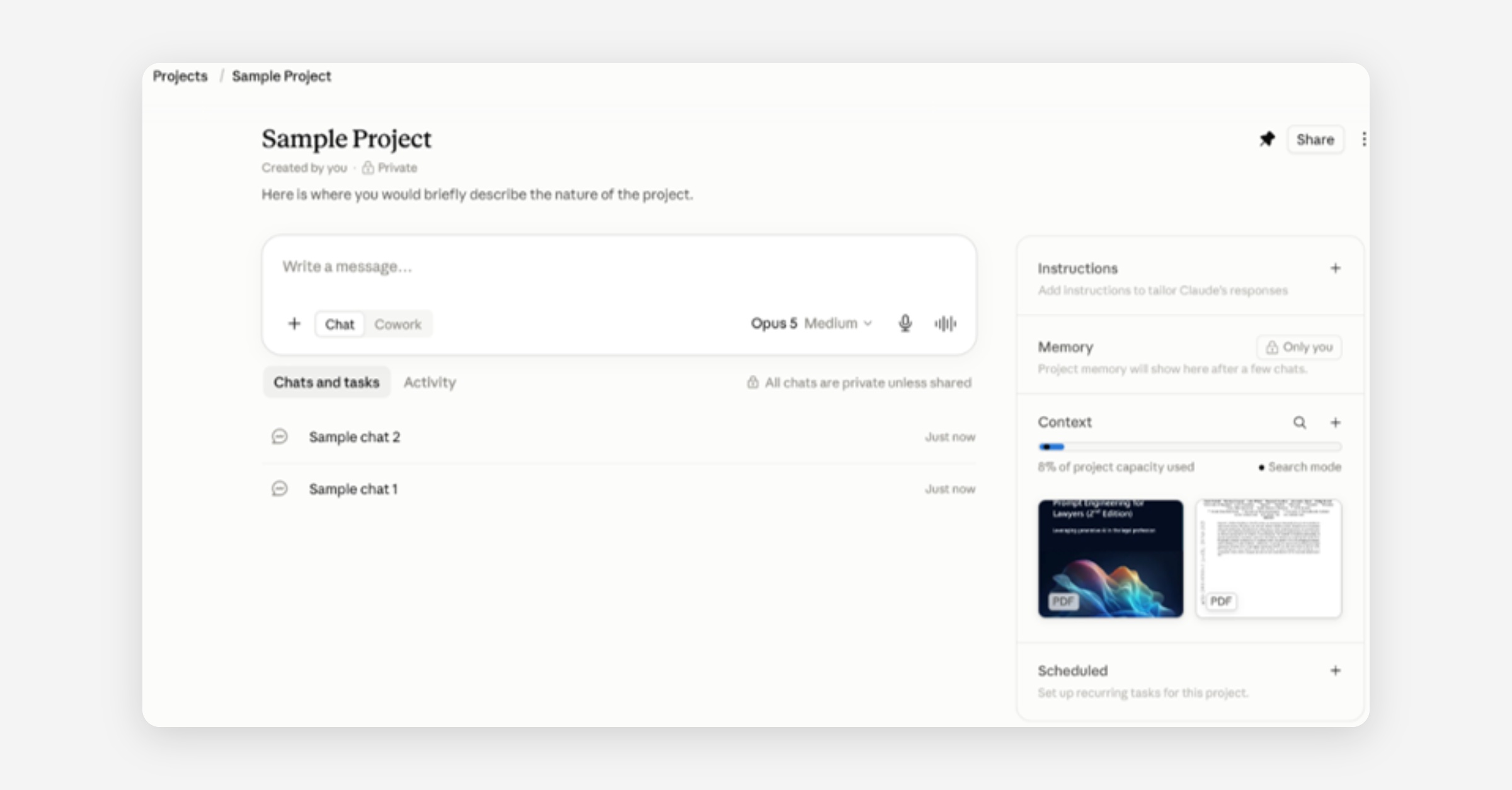
A project comprises the broad instructions you have provided, the context documents you have uploaded, and the distinct chats you have begun within it.
Instructions tailor Claude’s behavior and responses, allowing you to control tone, the perspective from which Claude answers, and Claude’s reasoning process.
Context documents inform Claude’s search and synthesis efforts. Documents used throughout a project should be uploaded into the project’s context window rather than into a specific chat.
A chat harnesses the information in the project’s context window and the chat’s conversation history. Its context window is unique from those of other chats within the project. Consider opening new chats for separate tasks within a project to avoid overloading one chat’s context window.
The various elements of a project can be seen in the project’s dashboard (image below).
Context
Context refers to the documents held in a project or discussion, your instructions, enabled connectors, and the conversation up to that point. This information is used to enhance the quality of Claude’s output.
The context window refers to the amount of data that can be stored in context at once. Leading LLMs have expansive context windows that span 1 million tokens, equivalent to over 2,500 pages of text.
Context rot refers to the gradual degradation in output quality as context fills with excess or outdated information. Claude’s knowledge of the information in the middle of your conversation is often the first to be lost.
To address the issue of context rot, practice the following:
1) Only upload relevant information into context.
2) Disable unnecessary connectors.
3) Use projects rather than isolated chats.
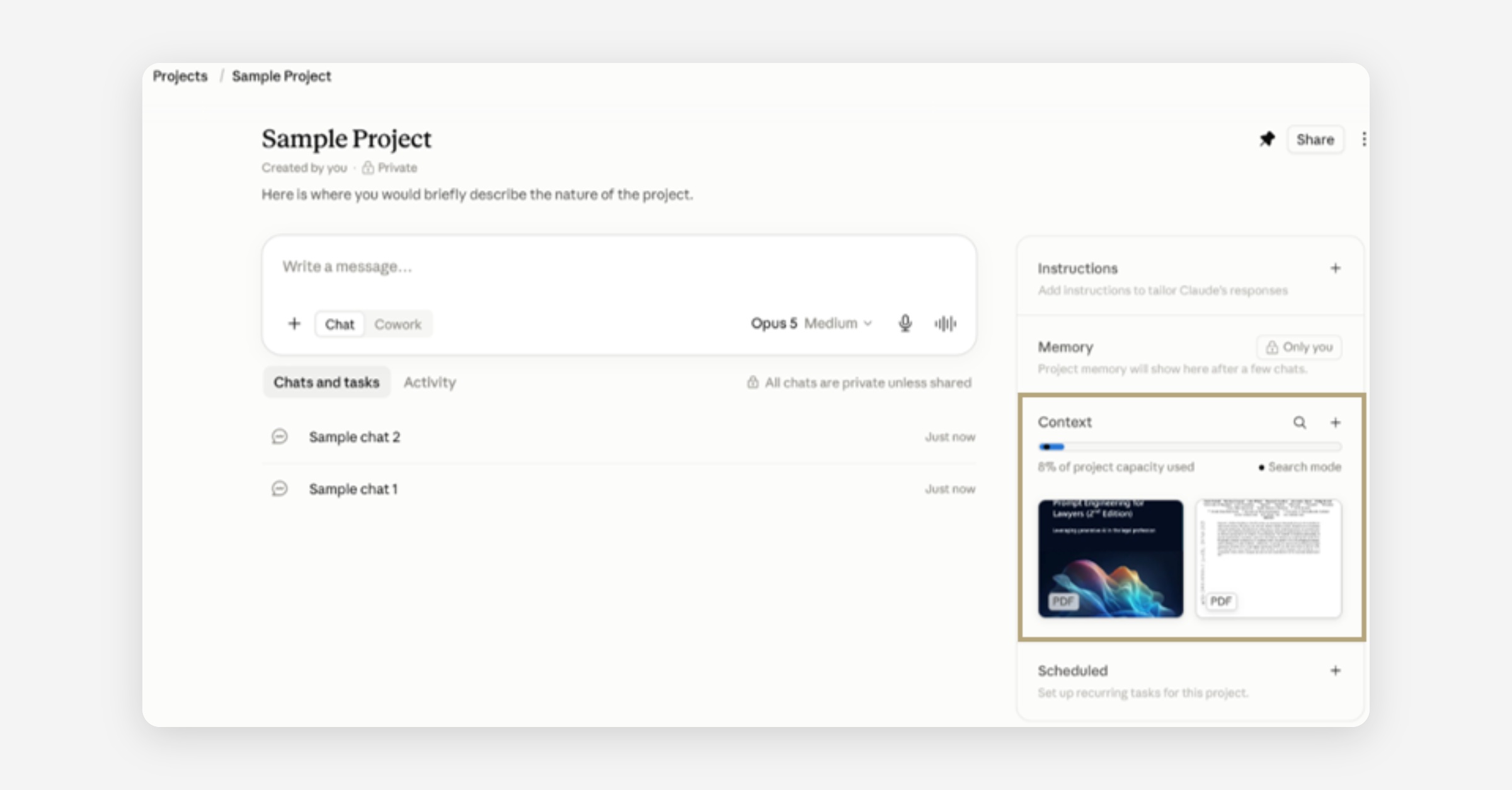
The context feature is visible in the bottom right corner of the Project dashboard (image below). From here, additional context documents can be added.
Skills
Skills are bundles of instructions to enhance the execution of repetitive tasks.
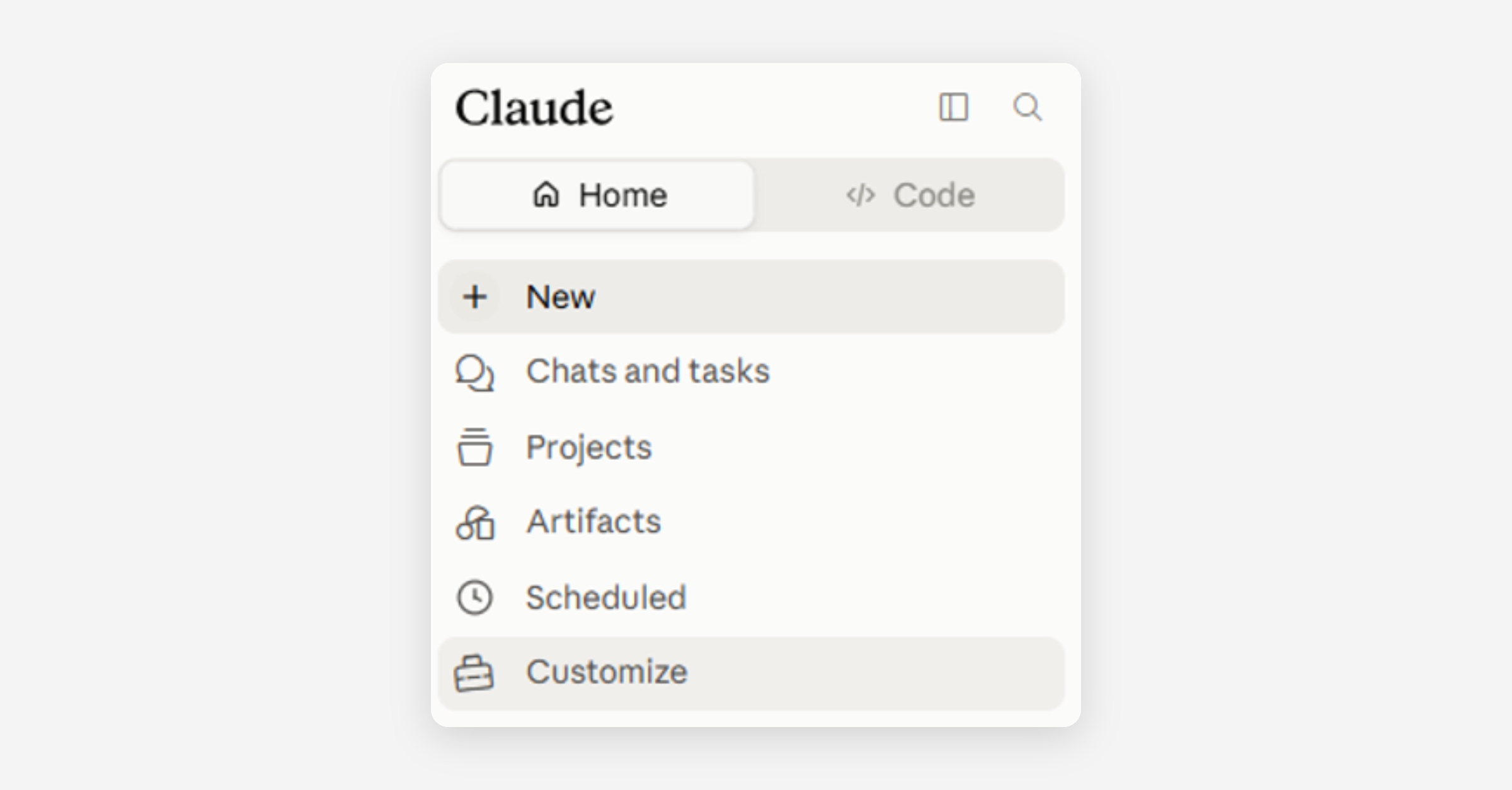
They can store workflows, institutional knowledge, and best practices. You can use skills created by Anthropic and by GP, in addition to those you have made. To view your existing Skills, select ‘Customize’ within the left-hand menu (top image in pair below) and select ‘Skills’ (Skills dashboard visible in bottom image in pair below).
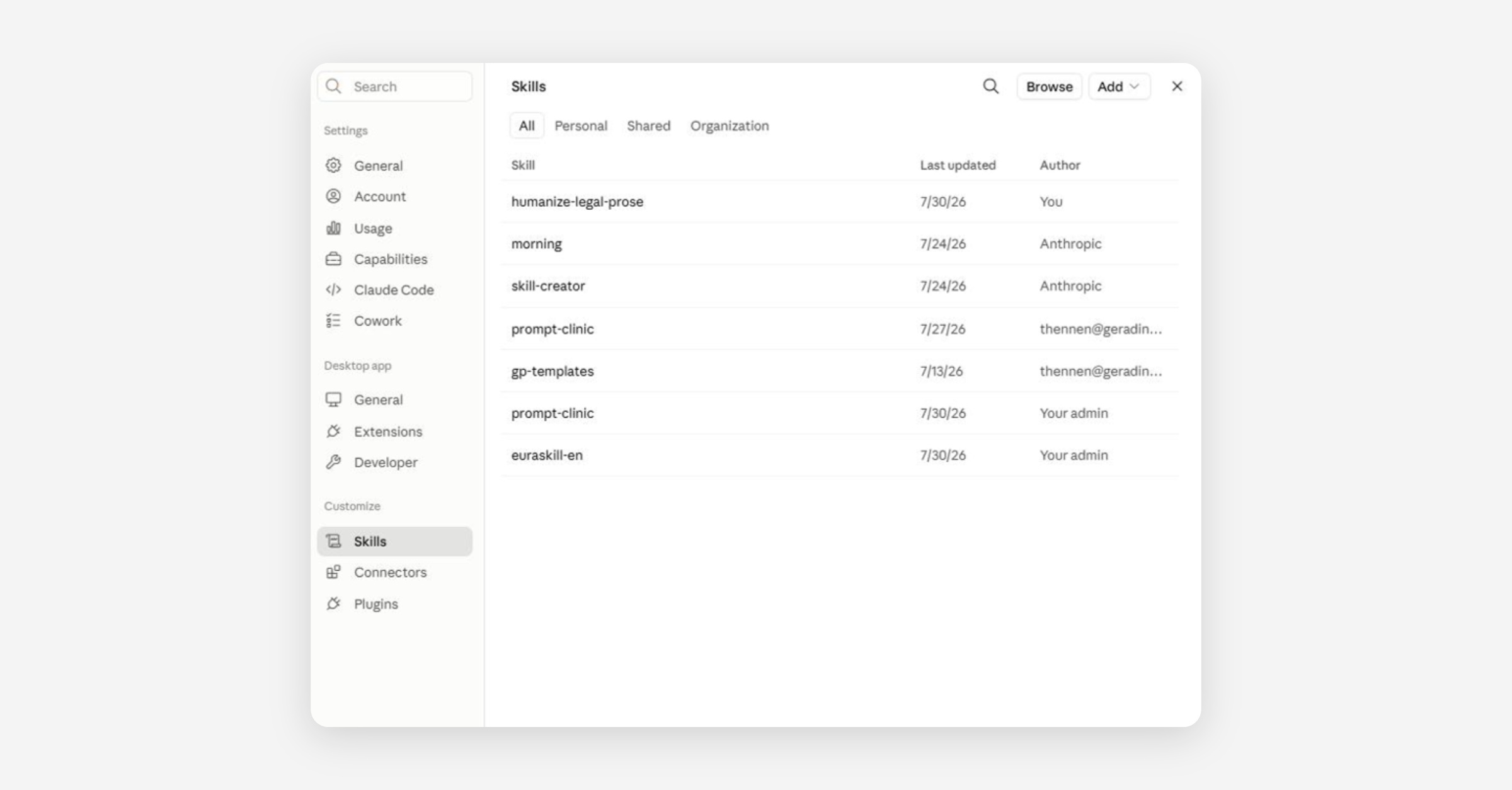
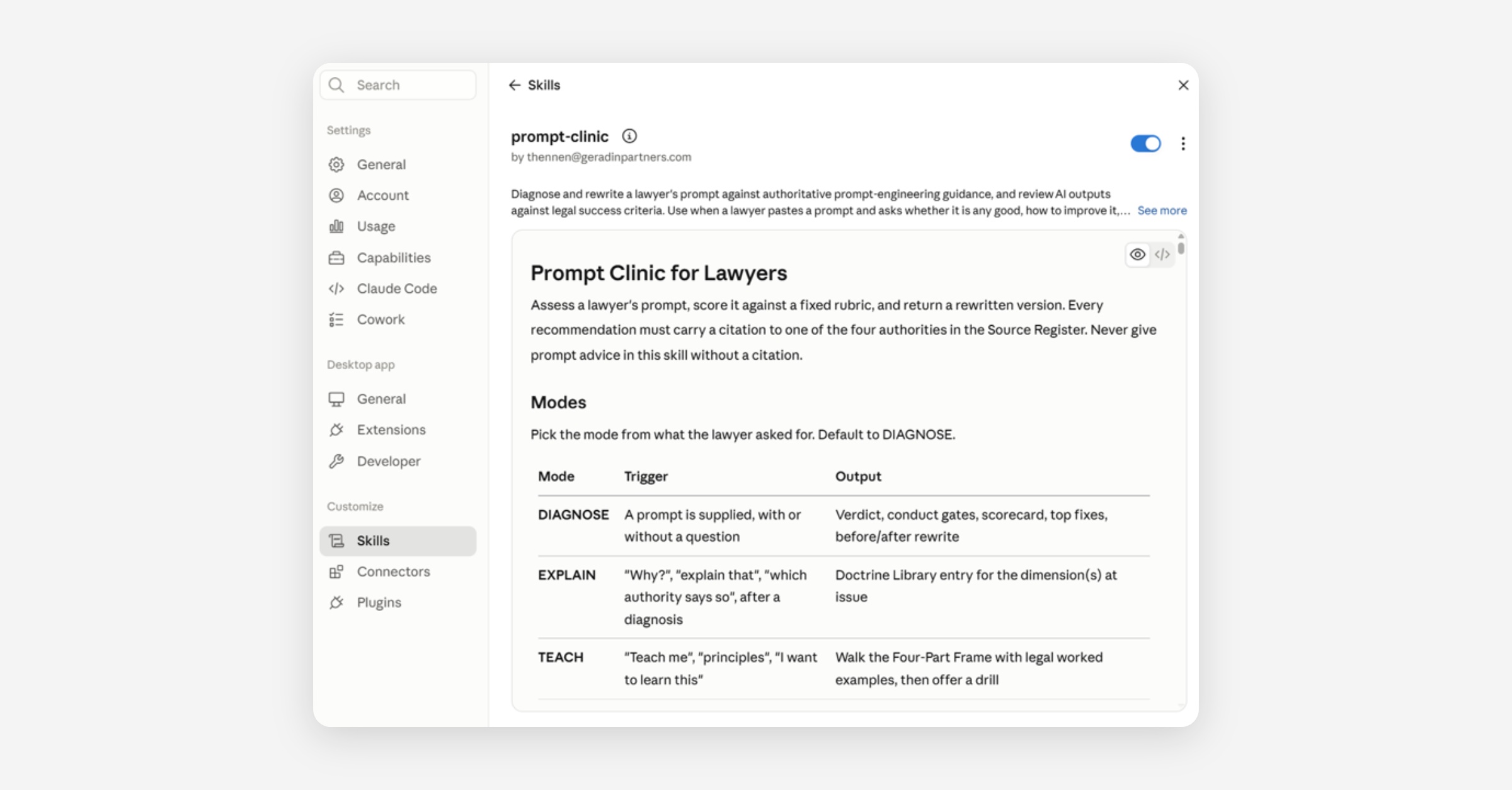
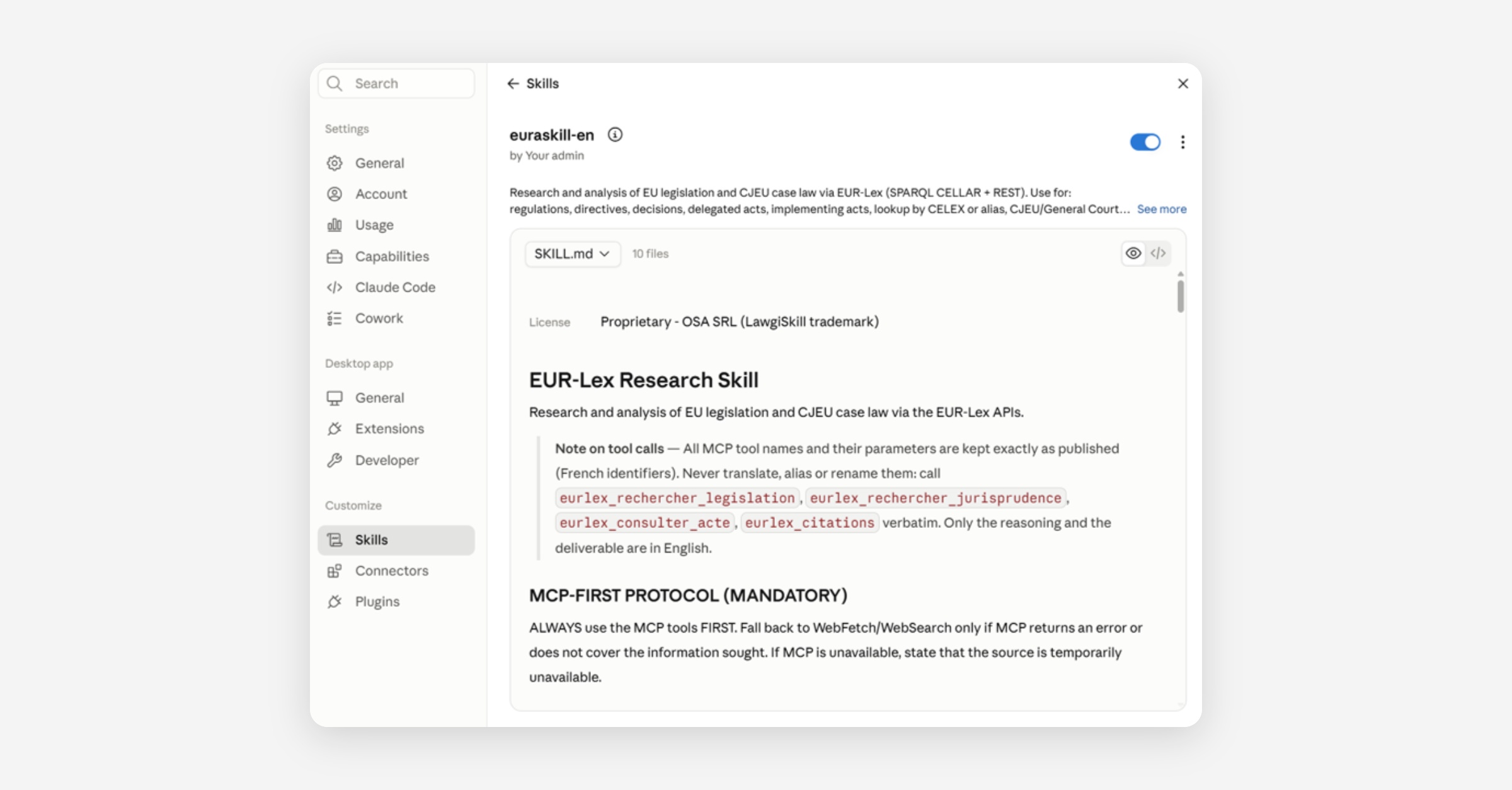
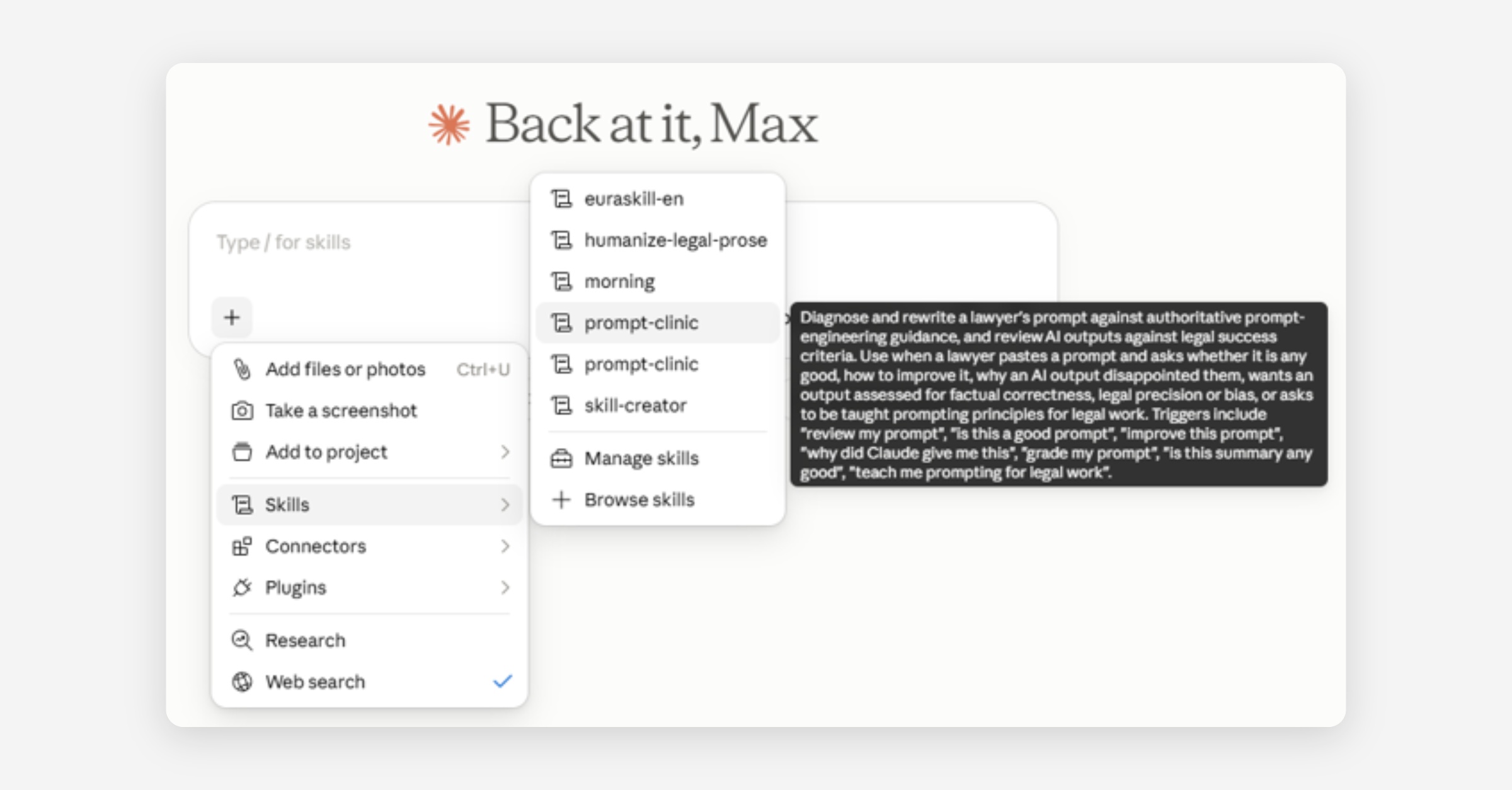
GP Skills are available to all firm members and include the prompt-clinic Skill and the euraskill-en Skill. The prompt-clinic Skill (top image in pair below) offers feedback on the quality of your prompt and provides you with a revised prompt. The euraskill-en Skill (bottom image in pair below) analyses EU legislation and CJEU case law via the EUR-Lex gateway.
Calling Existing Skills
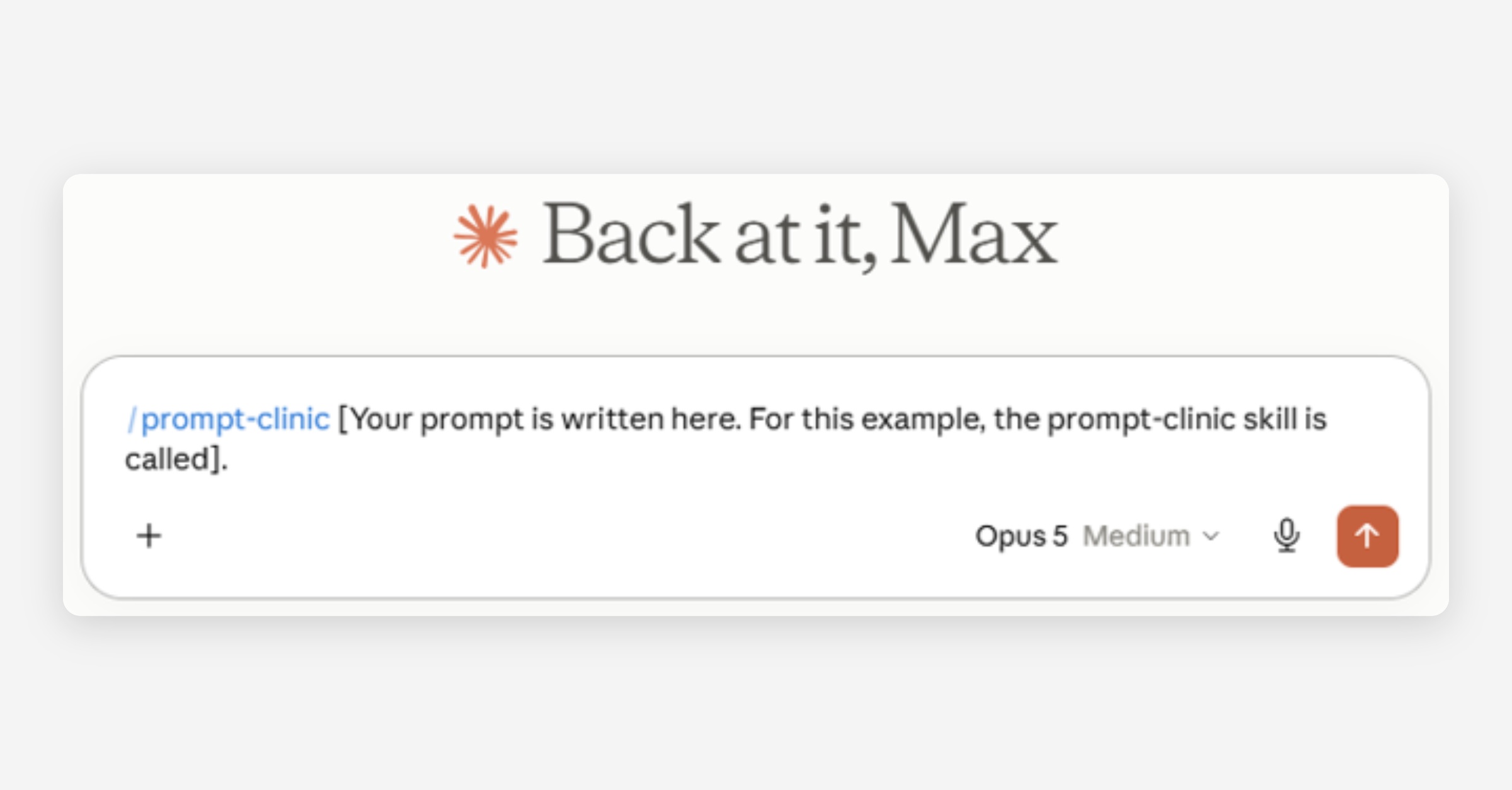
Skills are triggered automatically when their description matches the prompt’s request. They can also be activated manually by typing /[SKILL_NAME] (top image in pair below) or by selecting them from the drop-down menu within a chat (bottom image in pair below).
Developing Your Own Skills
Consider creating your own Skills to automate tasks that you perform repeatedly. A Skill should have a clear-cut purpose with a straightforward description. To create your own Skill, select ‘Add’ within the ‘Skills’ dashboard (image below).
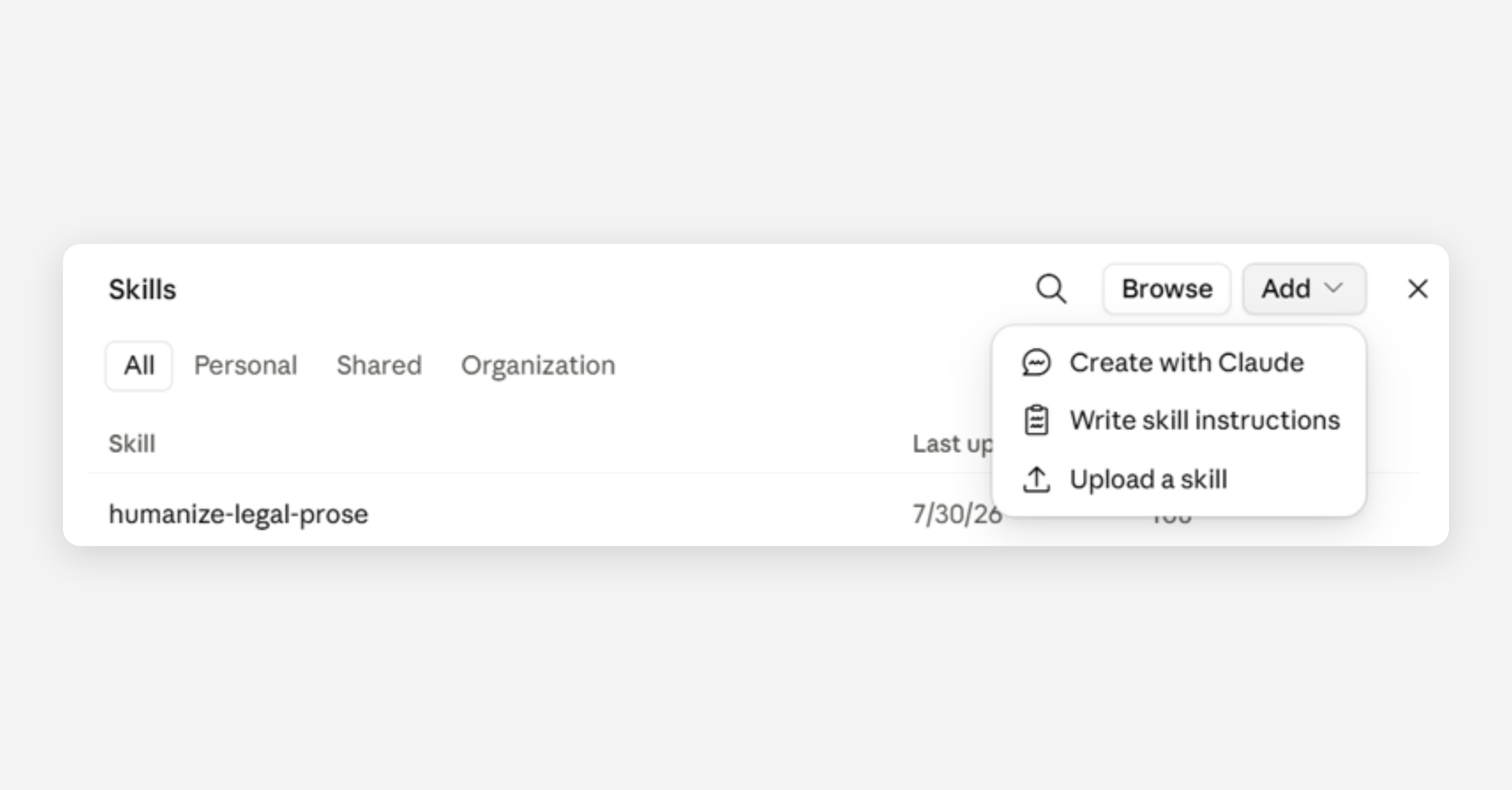
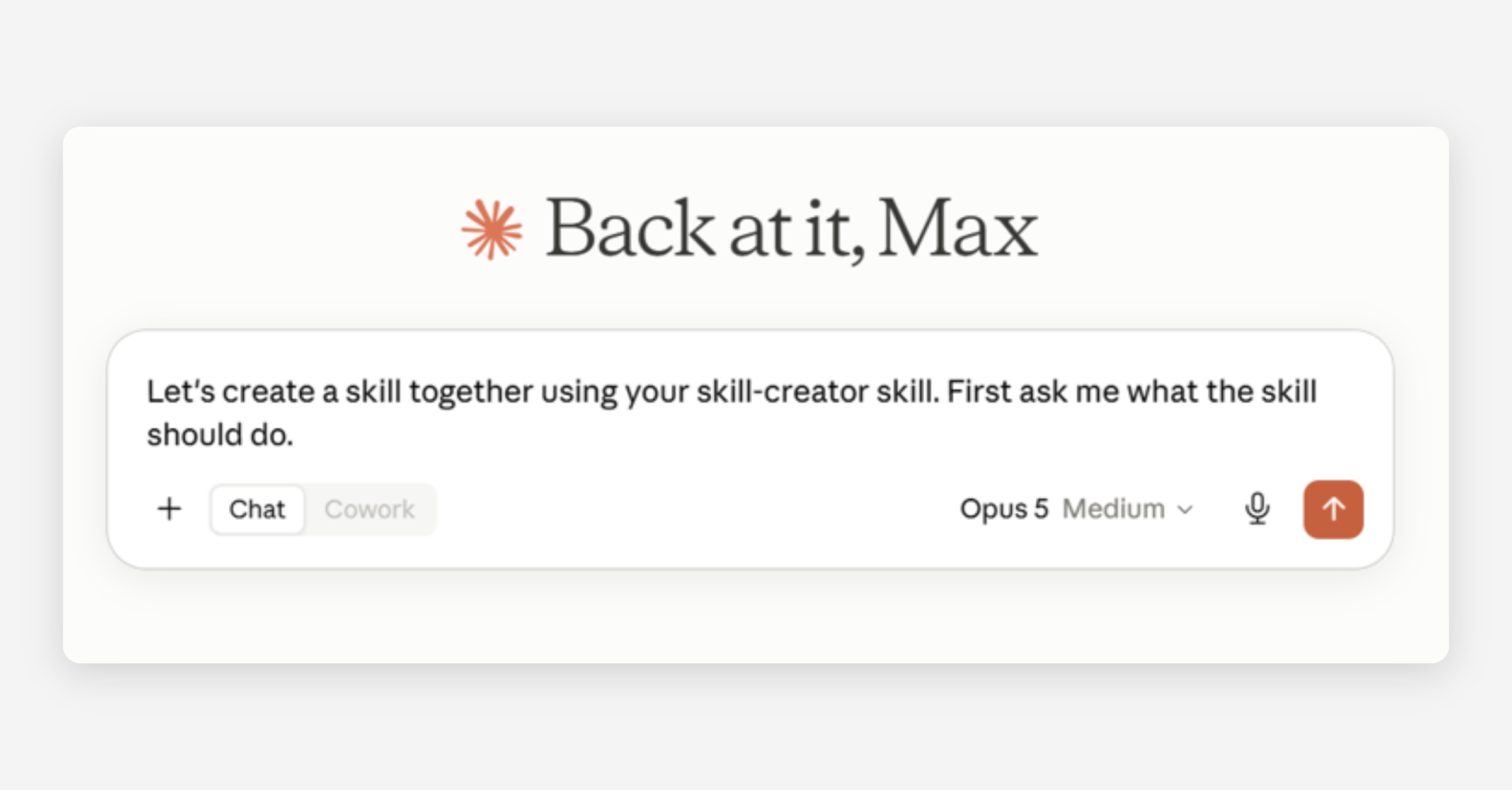
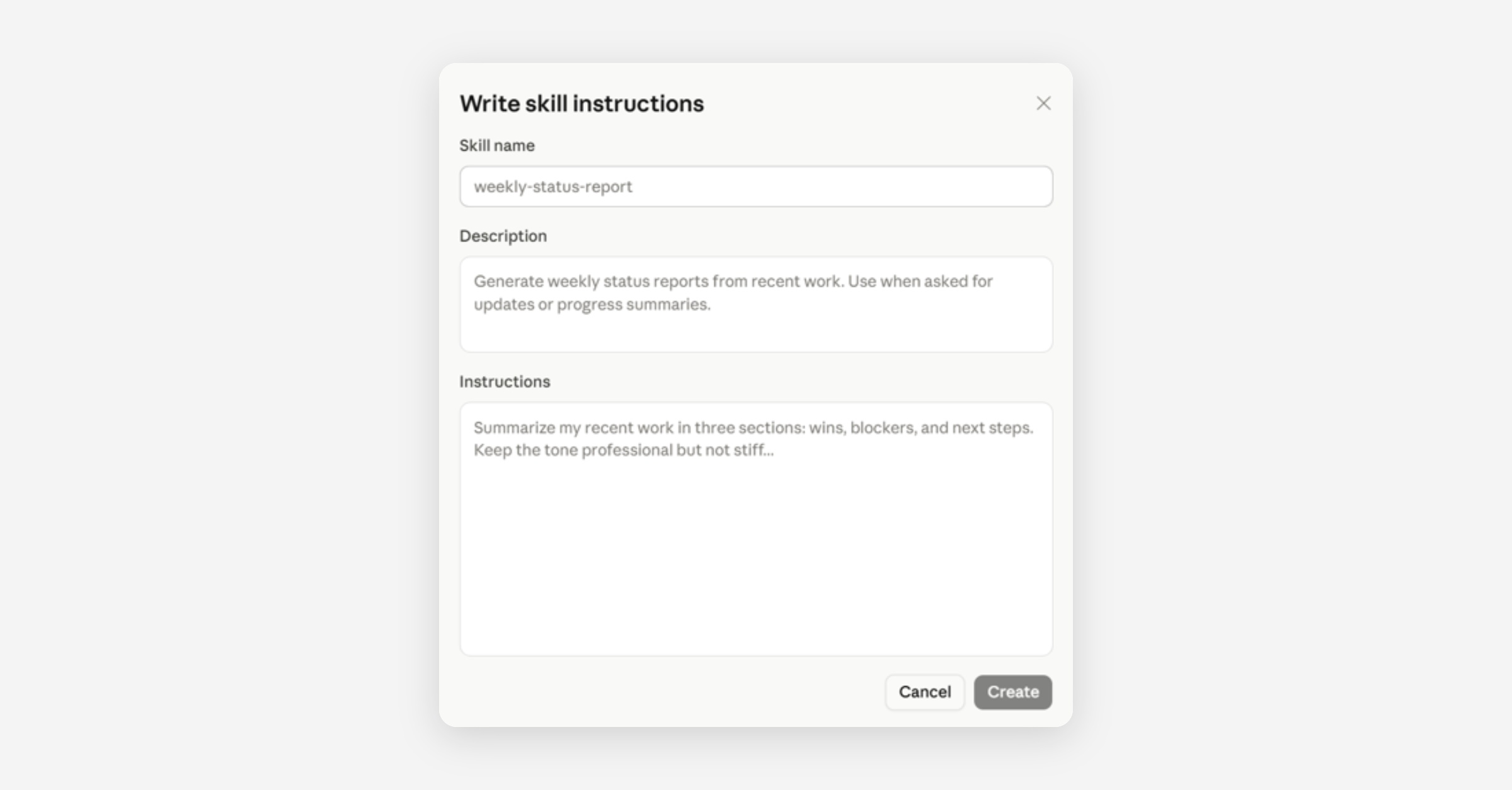
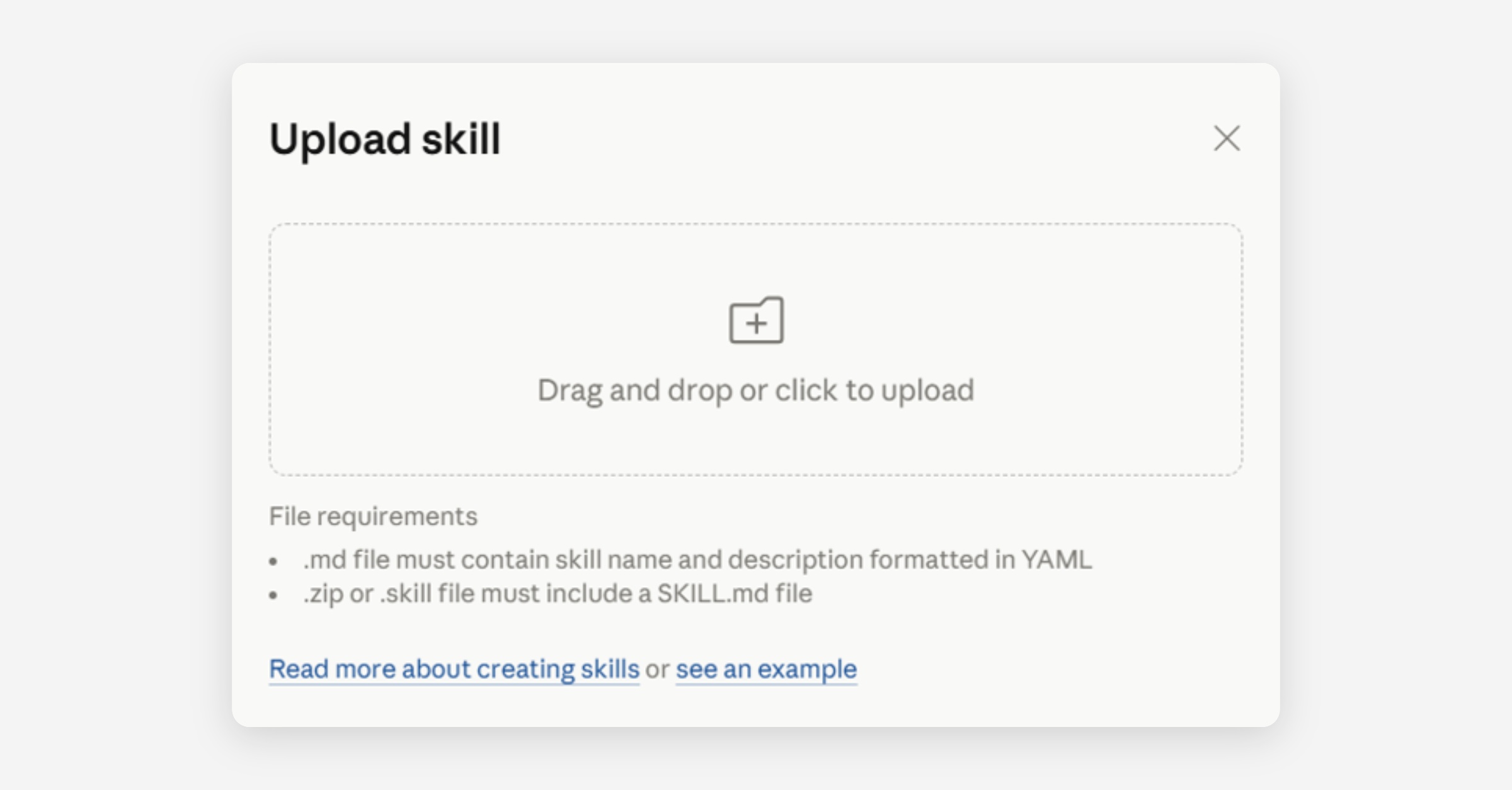
Skills can be created with Claude (top image in trio below), written by you (middle image in trio below), or uploaded (bottom image in trio below).
Sharing Your Skills
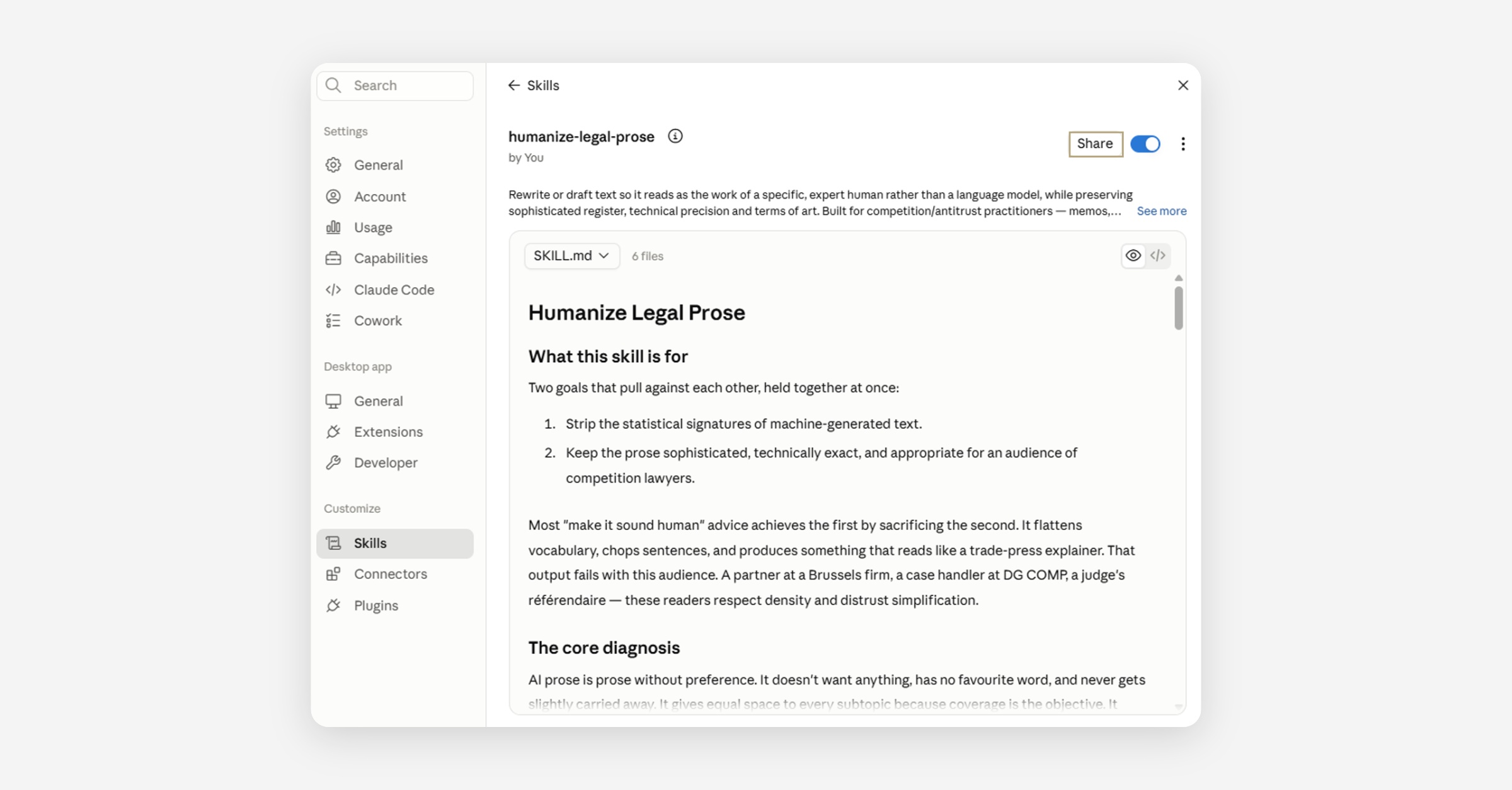
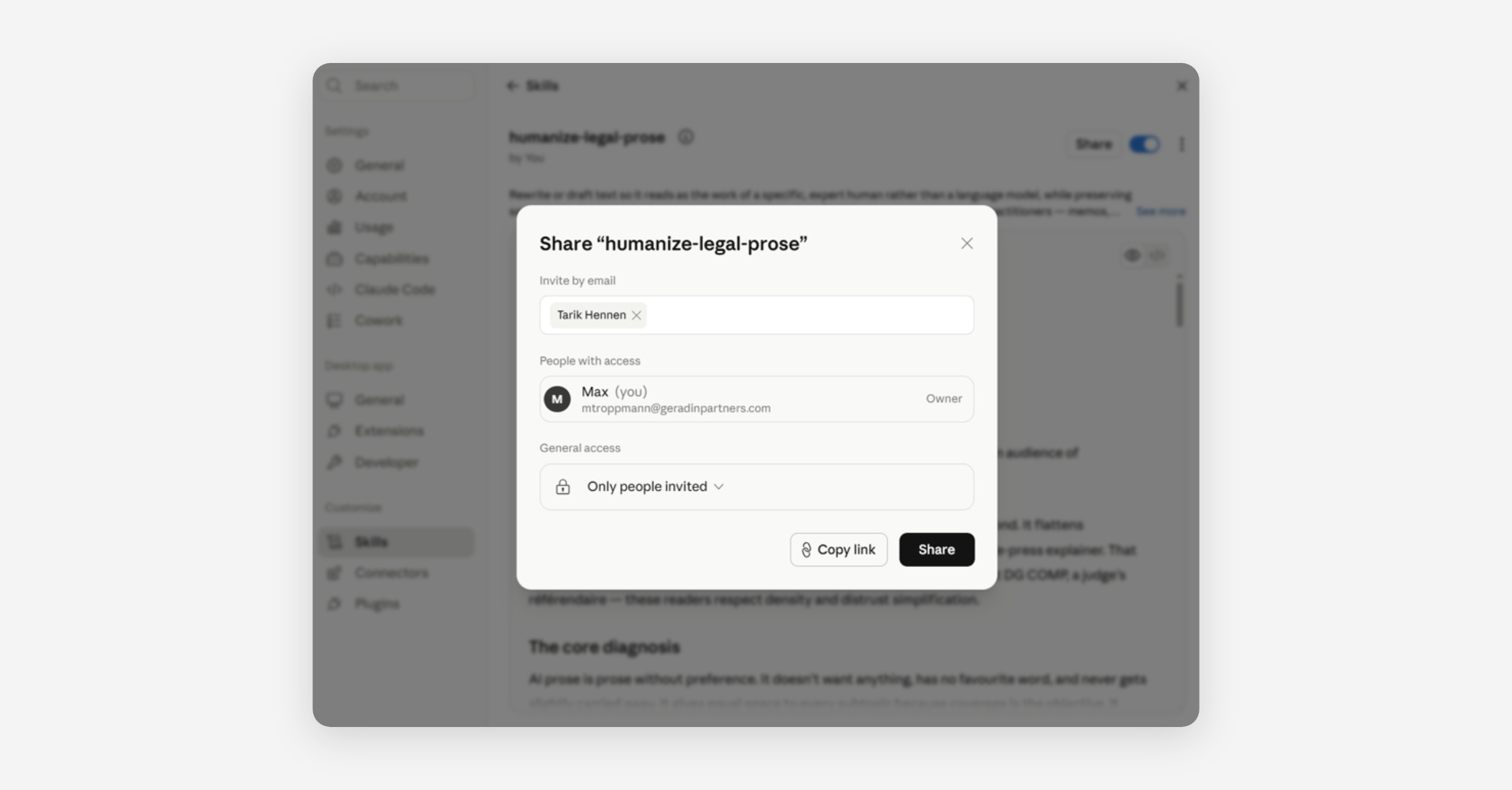
Skills can be shared with colleagues to improve firm-wide workflows. To share a Skill, navigate to the chosen Skill’s description page and select ‘Share’ in the upper righthand corner of the dashboard (see top image in pair below). In the interface that appears, access permissions can be controlled on a granular level (see bottom image in pair below).
Though access to the Skill may be shared, editing permissions for the Skill remain with its author.
Only install Skills from trusted sources. Before implementing a Skill that you have not written, read the files bundled inside it, and pay close attention to the code and instructions that access external sites.
Connectors
Connectors link Claude to external systems that are used by Geradin Partners.
Claude can use the retrieved information from connected databases to craft more relevant, informed responses. Claude can also act within the external system itself. Claude cannot access data or files that you are unable to access.
Examples of systems that can be connected to Claude include Microsoft 365 (offering access to Outlook, Teams, and SharePoint), Notion, Slack, Thomson Reuters, and Apollo.
Setting Up and Enabling a Connector
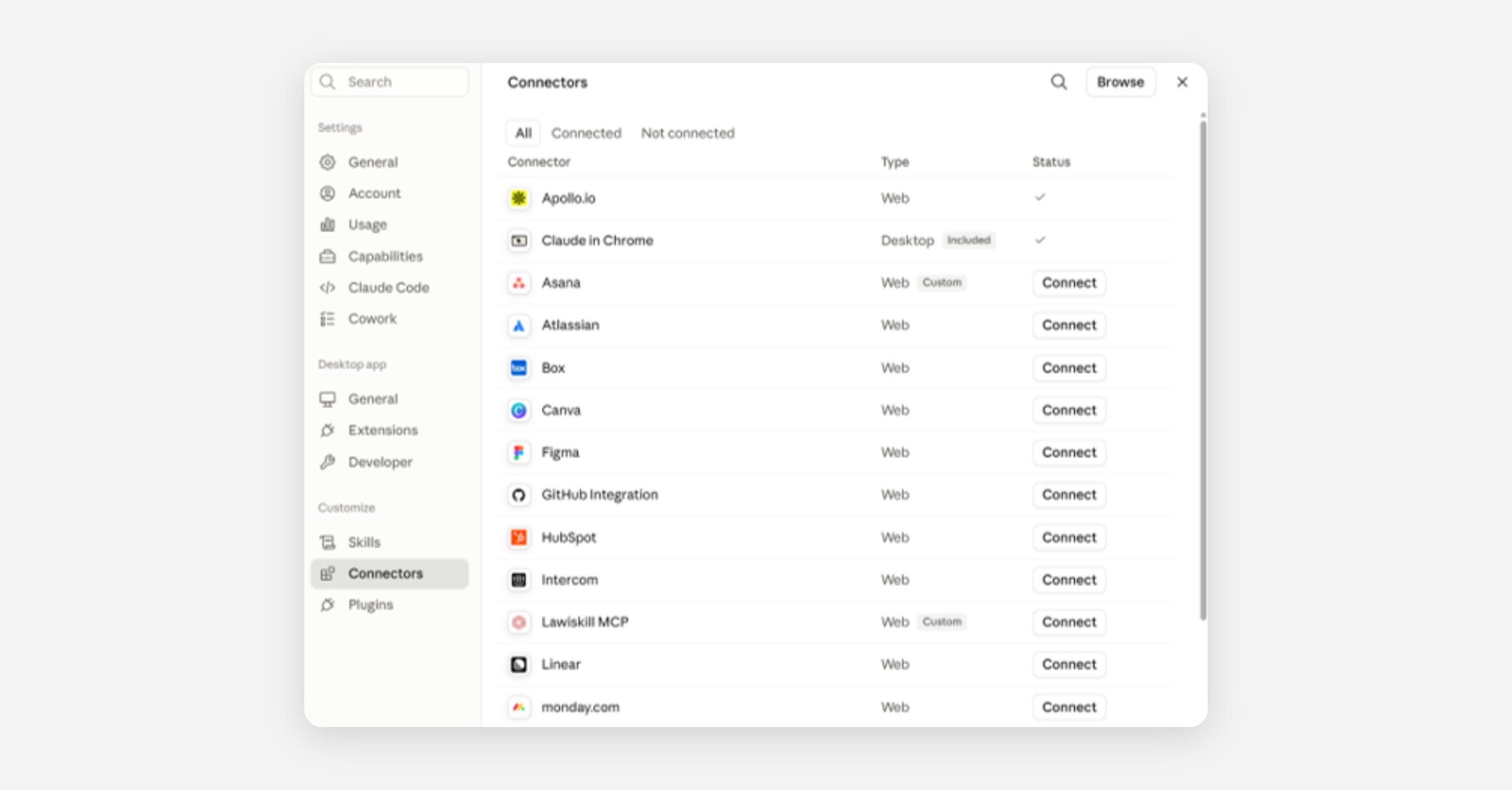
To set up connectors that have been enabled by GP’s Claude administrator, select ‘Customize’ in the left sidebar, navigate to ‘Connectors’ in the menu that appears, select ‘Connect’ for the desired connector, and proceed with the set up (top image in pair below).
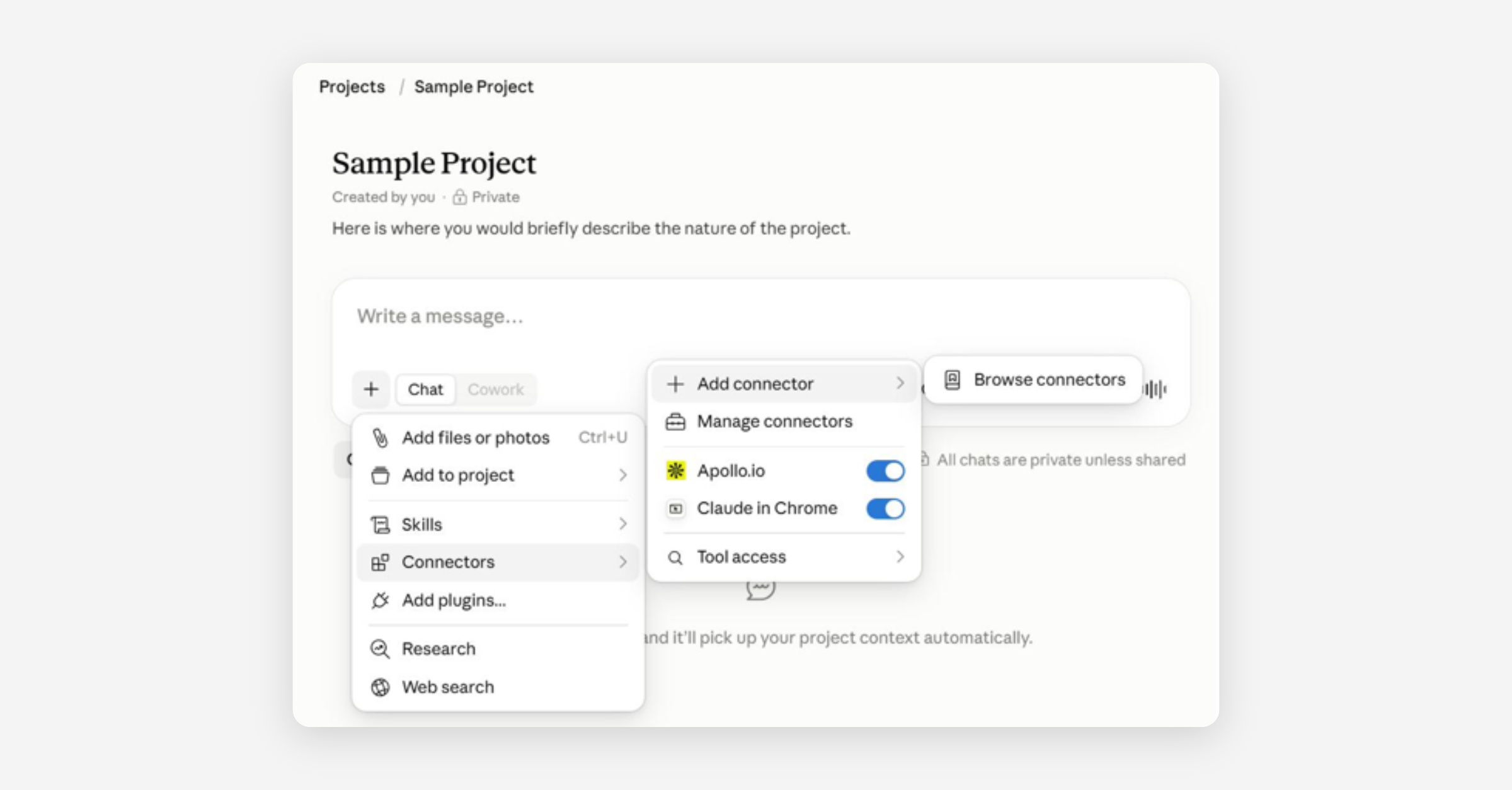
To request access to Connectors that have not been enabled by GP’s Claude administrator, select ‘Browse’ in the upper right-hand corner of the Connectors page. Alternatively, select the ‘+’ within a Chat, hover over ‘Connectors’ in the drop-down menu, navigate to ‘Add connectors’ within the side menu that appears, and select ‘Browse connectors’ (bottom image in pair below). Search for the desired connector and click on ‘Request'.
Setting Permissions for Claude’s Connectors
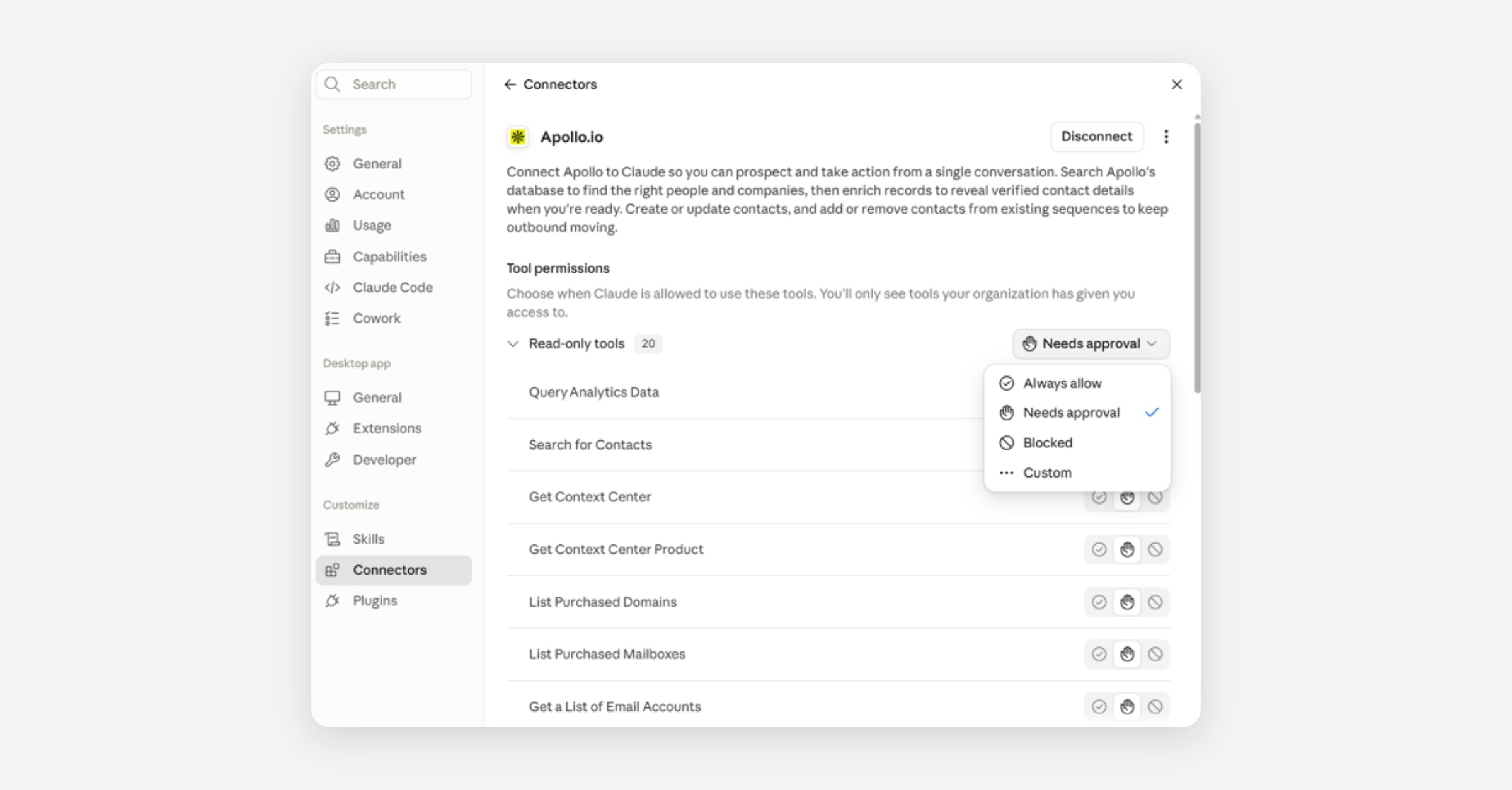
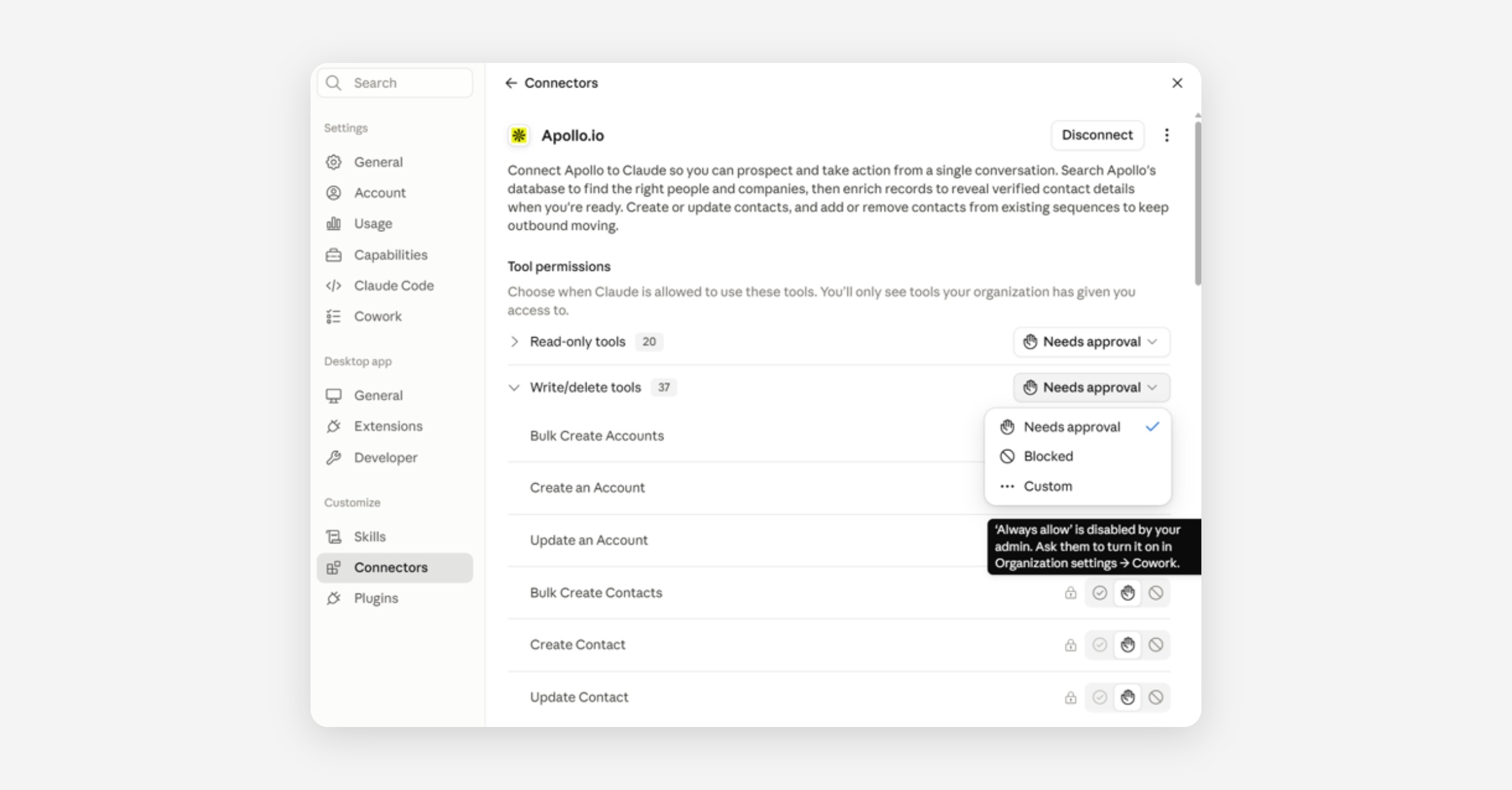
Tools represent the associated actions that Claude can perform when connected to an external system. Connectors’ tools are divided into two sets that carry their own permissions. The Read-only set (top image in pair below) covers searching within and retrieving data from the connected system. The Write/delete set (bottom image in pair below) allows Claude to create, edit, send, and remove data within the system.
The ‘Always allow’ permission for Write/delete tools must be enabled by GP’s Claude administrator.
Plug-ins
A plug-in is a pre-packaged bundle of skills and connectors for a specific workflow. It allows Claude to access external data and follow custom instructions, enabling workflow automation.
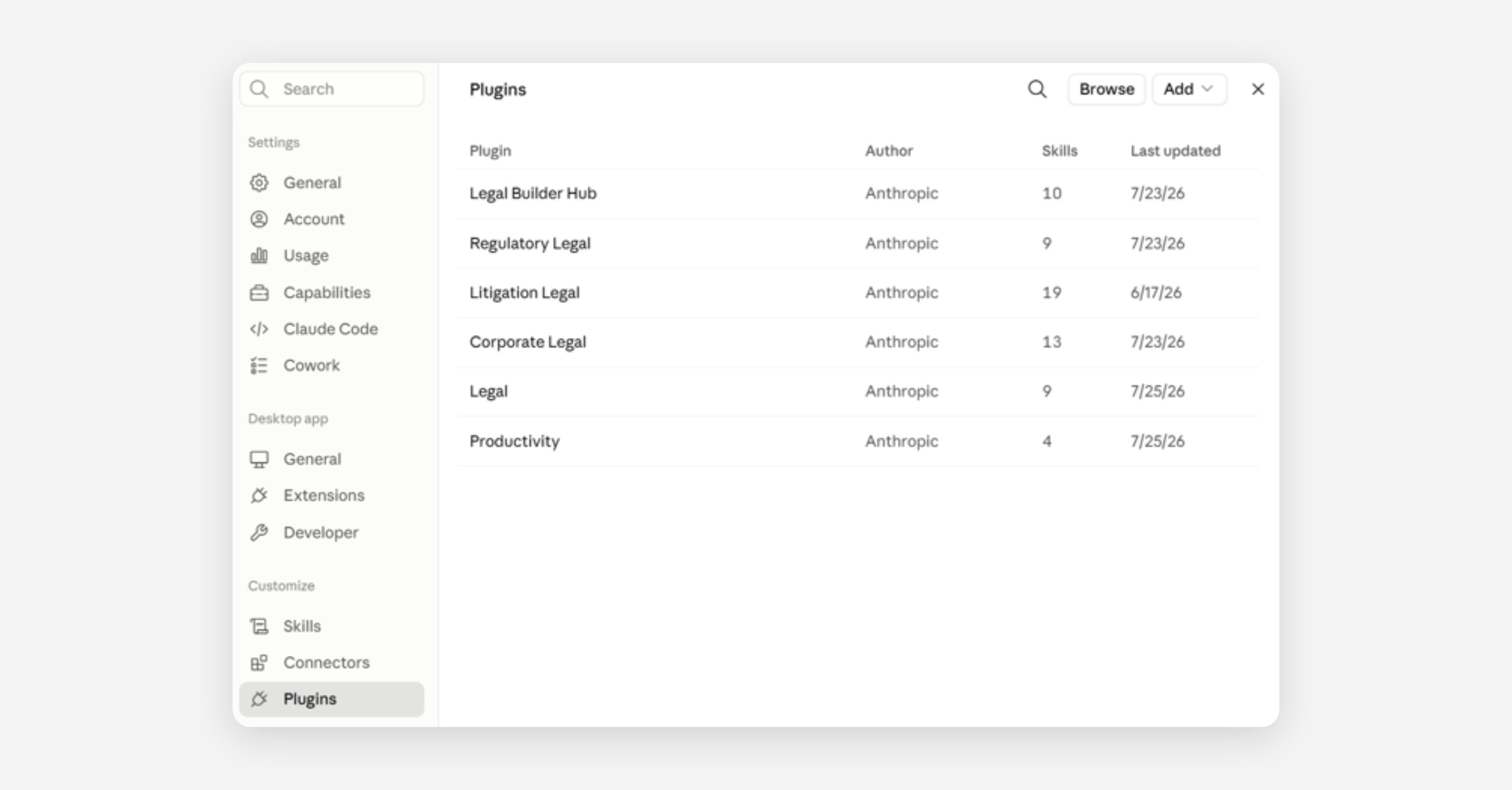
Several of the plug-ins provided by Anthropic are designed for legal work. To browse through available plug-ins, select ‘Customize’ in the left sidebar, navigate to ‘Plugins’ in the menu that appears, and select ‘Browse‘ in the upper right-hand corner of the Plug-ins page (top image in trio below).
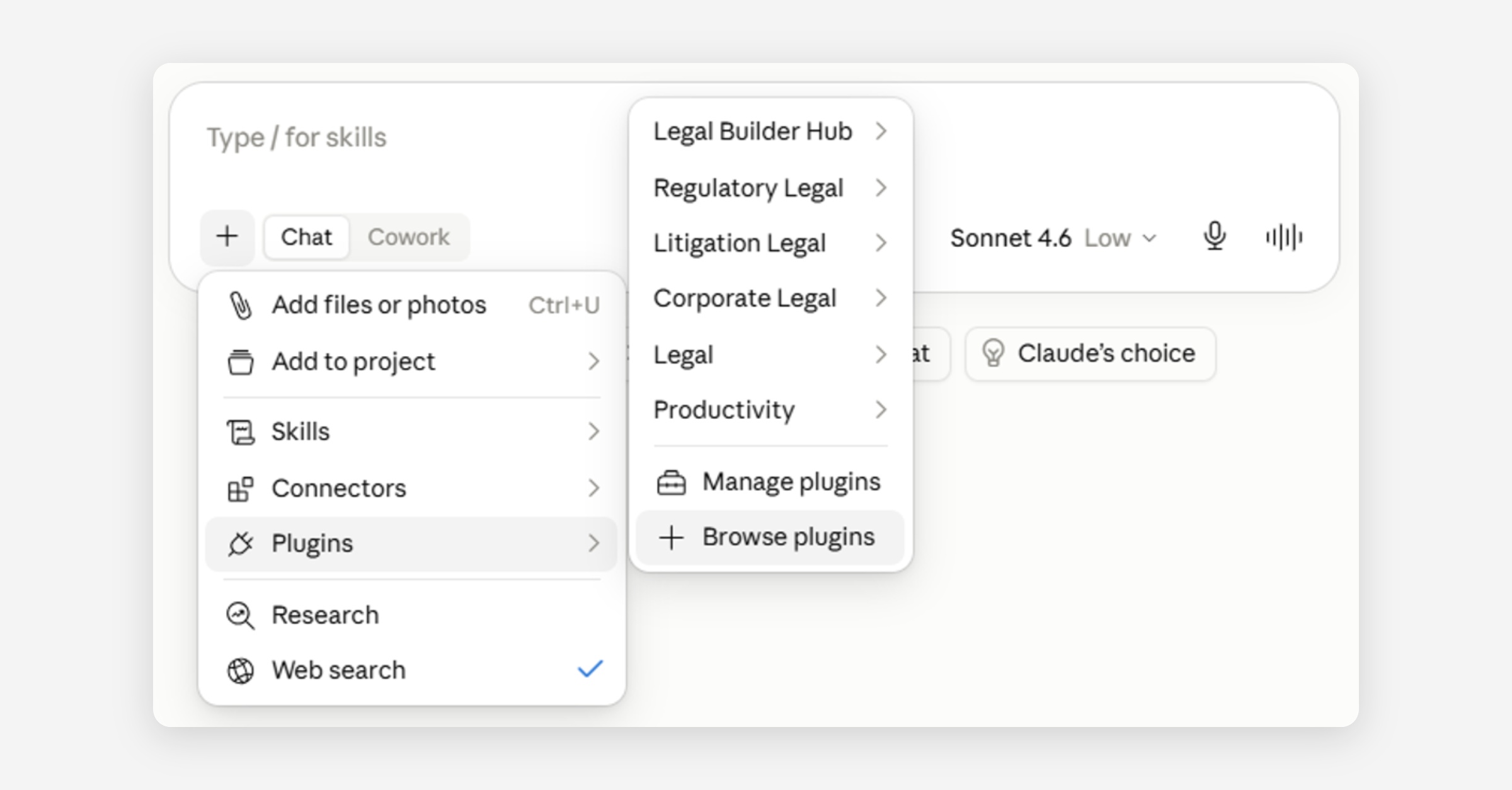
Alternatively, select the ‘+’ within a Chat, hover over ‘Plugins’ in the drop-down menu, and select ‘Browse plugins’ (middle image in trio below).
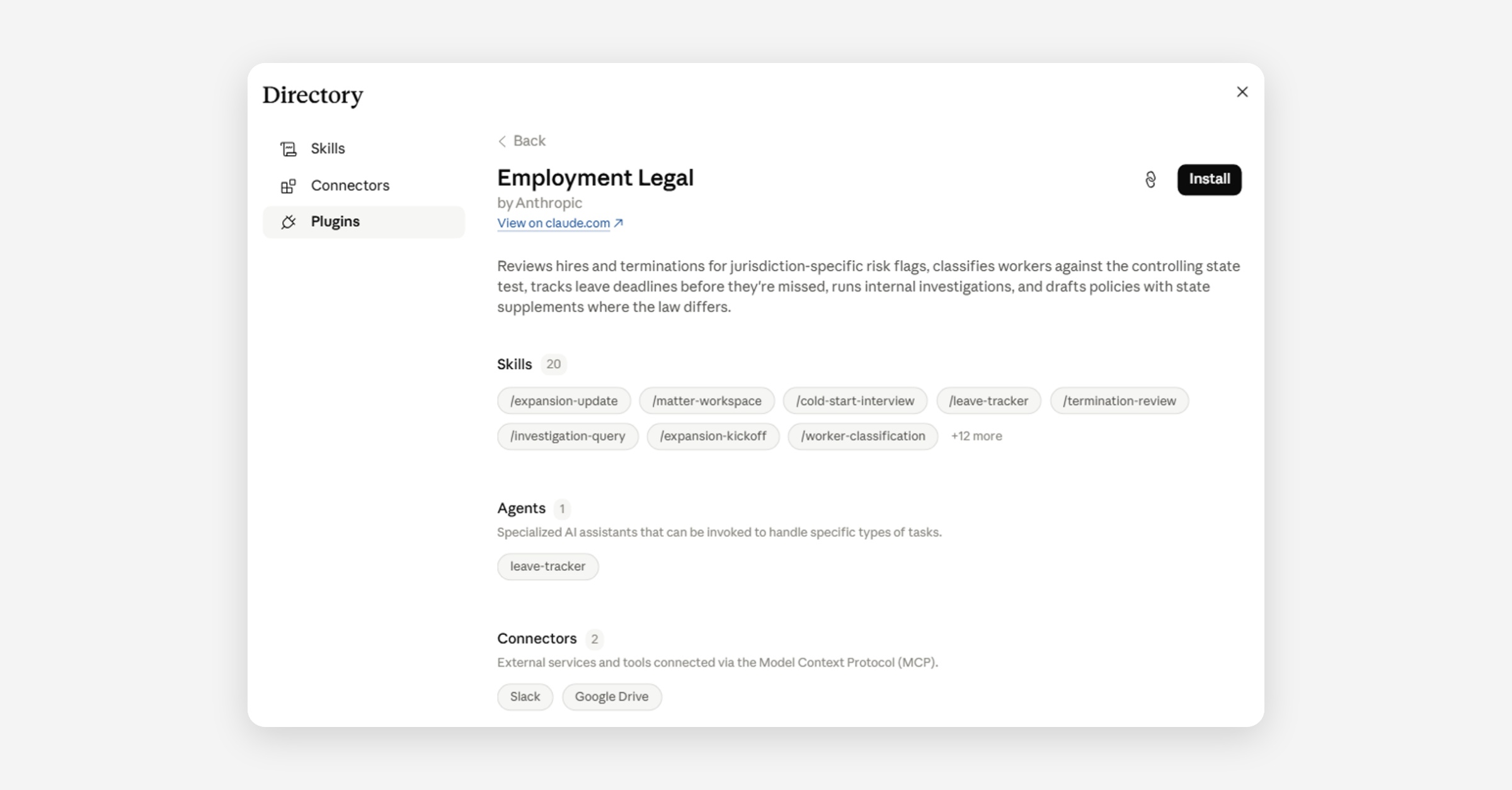
When browsing through plug-ins, click on a plug-in to view a description of the plug-in and its associated Skills, Agents, and Connectors (bottom image in trio below).
Was this helpful?